How to Store Vital Records Offline, Encrypted, No Cloud
Storing vital records offline and encrypted means scanning your birth certificates, Social Security cards, deeds, and other hard-to-replace documents into a locally encrypted vault — not a cloud service — using real encryption like AES-256, then keeping a second copy on separate media somewhere outside your home. No internet connection required to access it, and no company’s server ever holds a copy.
Why “no cloud” is the deliberate choice here, not just a preference
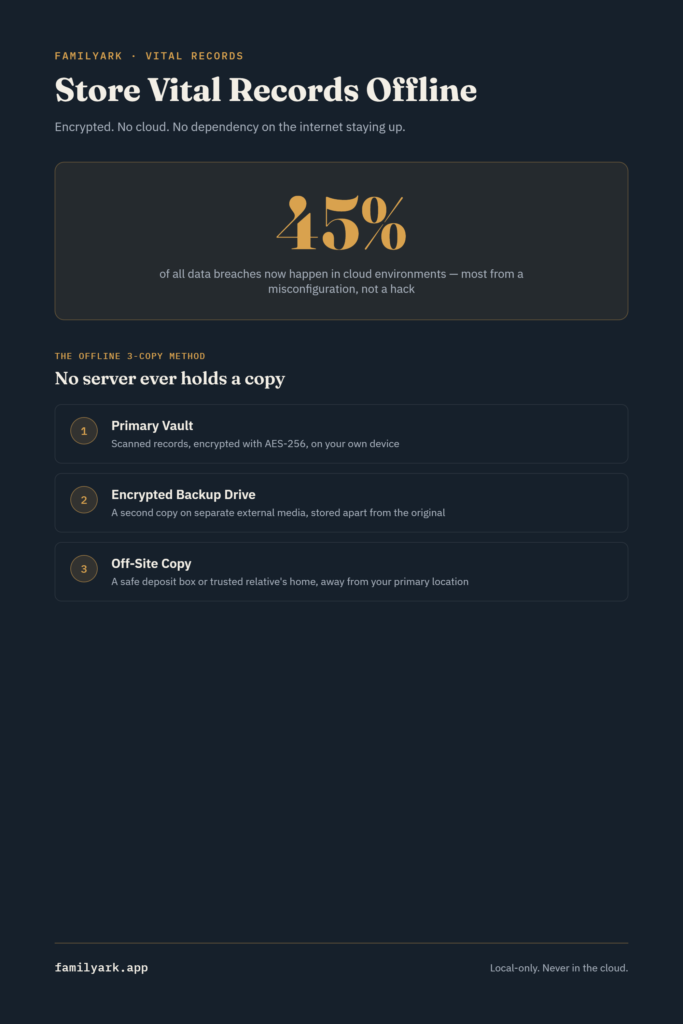
Cloud storage is convenient, but convenience and control are trading against each other. Recent industry data puts real numbers on that trade-off: 45% of all data breaches now occur in cloud environments, and 95% of cloud security failures trace back to misconfiguration and human error rather than some sophisticated attack — meaning most cloud data exposure isn’t hackers breaking in, it’s a setting left wrong by someone at the company holding your data. The average data breach now costs organizations $4.88 million globally, which tells you how seriously companies take prevention — and yet breaches keep happening anyway, because the incentive to protect your specific documents is diluted across millions of other users’ data too.
For vital records specifically — the documents that are genuinely hard or impossible to replace, and that contain exactly the information identity thieves want most — that risk calculus is different than it is for, say, vacation photos. A cloud breach exposing your Social Security number and birth certificate is a different category of problem than a breach exposing your Netflix history.
There’s a second reason this matters for anyone thinking in prepper terms specifically: a cloud service assumes the internet, the company, and your account access all keep working. Offline storage doesn’t depend on any of those three things staying true.
What actually counts as a “vital record”
This is a narrower category than a full document checklist — vital records specifically means the documents issued by a government body that establish identity, family relationships, or legal status, and that are genuinely difficult to replace:
- Birth certificates
- Death certificates
- Marriage and divorce certificates
- Adoption records
- Social Security cards
- Passports
- Military discharge papers (DD-214)
- Naturalization or immigration documents
- Property deeds and vehicle titles
These are the documents worth the extra care described below — not because other documents don’t matter, but because these specifically require a trip to a government office (sometimes a slow one) to replace if lost.
The offline-encrypted method, step by step
1. Scan at real quality. A phone camera photo is better than nothing, but a proper scan (300 DPI or higher, saved as PDF) is what actually holds up if you ever need to print a usable copy or submit it somewhere official.
2. Store it in a vault that encrypts locally, not in transit to a server. The distinction matters: a cloud service that “encrypts” your files typically still holds the decryption capability on their end. A true local-only vault encrypts the data on your device, using strong encryption like AES-256, and the file never exists in a readable form anywhere outside your control.
3. Apply an offline version of the 3-2-1 backup rule. The standard version of this rule is three copies of your data, on two different types of media, with one stored off-site — and it normally assumes cloud storage fills one of those roles. The no-cloud version swaps that out: keep your primary encrypted vault on your main device, a second encrypted copy on a separate external drive or SSD, and a third copy — also encrypted — physically stored somewhere off-site, like a safe deposit box or a trusted family member’s home in another location.
4. Protect the physical media itself. An external drive is only as durable as the object it is — keep it in something water-resistant, and treat it the way you’d treat an important paper document, because it fails the same way one does: fire, flood, and simple loss.
5. Refresh the copies periodically. Storage media can degrade over years, and your document set changes as life does. Revisit this setup annually — verify the files still open correctly, and add anything new.
Where a local-only vault fits
This is precisely the gap FamilyArk was built to close — vital records and other sensitive documents scanned in, organized by category, and protected with AES-256 encryption, entirely on your own device with nothing ever transmitted to a server. It pairs naturally with the grab-and-go binder covered earlier in this series: the binder is your fast, physical, in-hand copy, while the encrypted vault is the complete, durable version that isn’t vulnerable to the same fire or theft risk a physical binder carries alone.
A simple weekend plan
- Gather your actual vital records — the narrower list above, not your entire filing cabinet.
- Scan each one at 300 DPI or better, saved as PDF.
- Load them into a local, encrypted vault on your primary device.
- Copy the encrypted vault to a second external drive, and store that drive somewhere other than where the original documents live.
- Arrange a third, off-site copy — a safe deposit box or a trusted relative’s home works well.
- Set a yearly reminder to verify the files and add anything new.
Frequently asked questions
Isn’t cloud backup safer because it survives a house fire? It survives a house fire, but it introduces a different risk — the provider’s own security, and your account’s exposure to phishing or credential theft. The off-site physical copy in this plan solves the “survives a fire” problem without introducing a server-side dependency.
What encryption strength should I actually look for? AES-256 is the current standard and what most reputable encrypted vaults and vault-style apps use — it’s the same encryption standard used by financial institutions and governments for classified data.
Do I still need the physical originals if everything is scanned? Yes, for some purposes. Certain institutions require an original certified document, not a scan or copy, for things like a passport application or a property transfer. Scanning protects against loss; it doesn’t replace every original-document requirement.
How often do storage drives actually fail? External drives and SSDs can degrade or fail over a period of years even with no visible warning, which is exactly why the yearly verification step matters more than people expect — a backup you haven’t checked in years might not actually work when you need it.